
USB CONNECTIVITY · PROJECT SOURCING
USB Wi-Fi Adapters for Digital Signage PCs
Start with the PC or player behind the screen. Compare USB Wi-Fi adapter attributes and installation routes for an open host, then define the driver and screen-side placement requirements for procurement.
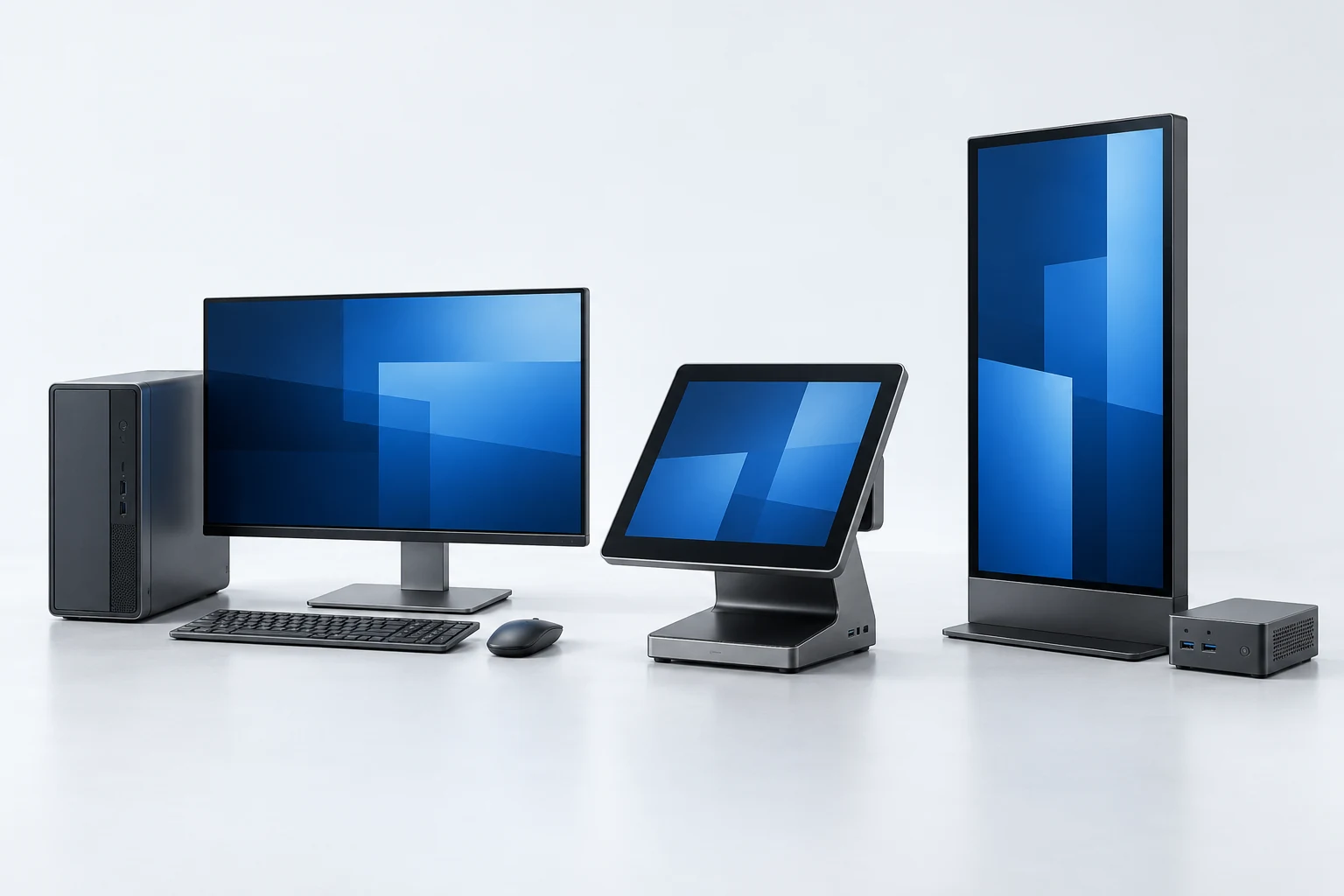
Concept illustration of display and computing hosts. It does not show a supported LGX installation.
START WITH THE HOST
Buy for the player, not the screen’s USB socket.
A signage display, a Windows PC and a vendor-controlled player can have very different wireless accessory rules. An open PC may allow a USB WLAN driver to be installed; a dedicated player may accept only named adapters. Establish that boundary before comparing the hardware.
Name the player
Record the player or PC model, system image and whether third-party drivers can be installed. A display’s USB connector alone is not a support statement.
Plan the location
Describe the space behind the screen, the USB position and surrounding metalwork. Compare an accessible adapter, a placement cable request or an internal-board project.
Make recovery repeatable
Define the driver package and network configuration needed after a restart or image restore. Use the same host conditions when evaluating the sample and agreeing the supplied revision.
DEFINE THE DELIVERY
Keep installation and service access in the brief.
Keep the physical installation, host software and order configuration in the same discussion. Request a specific delivery set rather than assuming that accessories or driver work are included.
The screen displays content; the player runs the software and network interface. Confirm both device identities before selecting an adapter.
External adapter route
For an open, driver-supported PC, describe the accessible USB port, screen-back clearance and replacement access. Ask for the correct connection and antenna form rather than choosing solely from an AC or AX number.
Internal board route
For a player you assemble, discuss the actual USB board, connection method and antenna location. Define supply voltage, mounting and driver responsibilities against that board instead of copying the host PC’s power rating.
REAL MODEL RECORDS
Compare attributes for the player PC
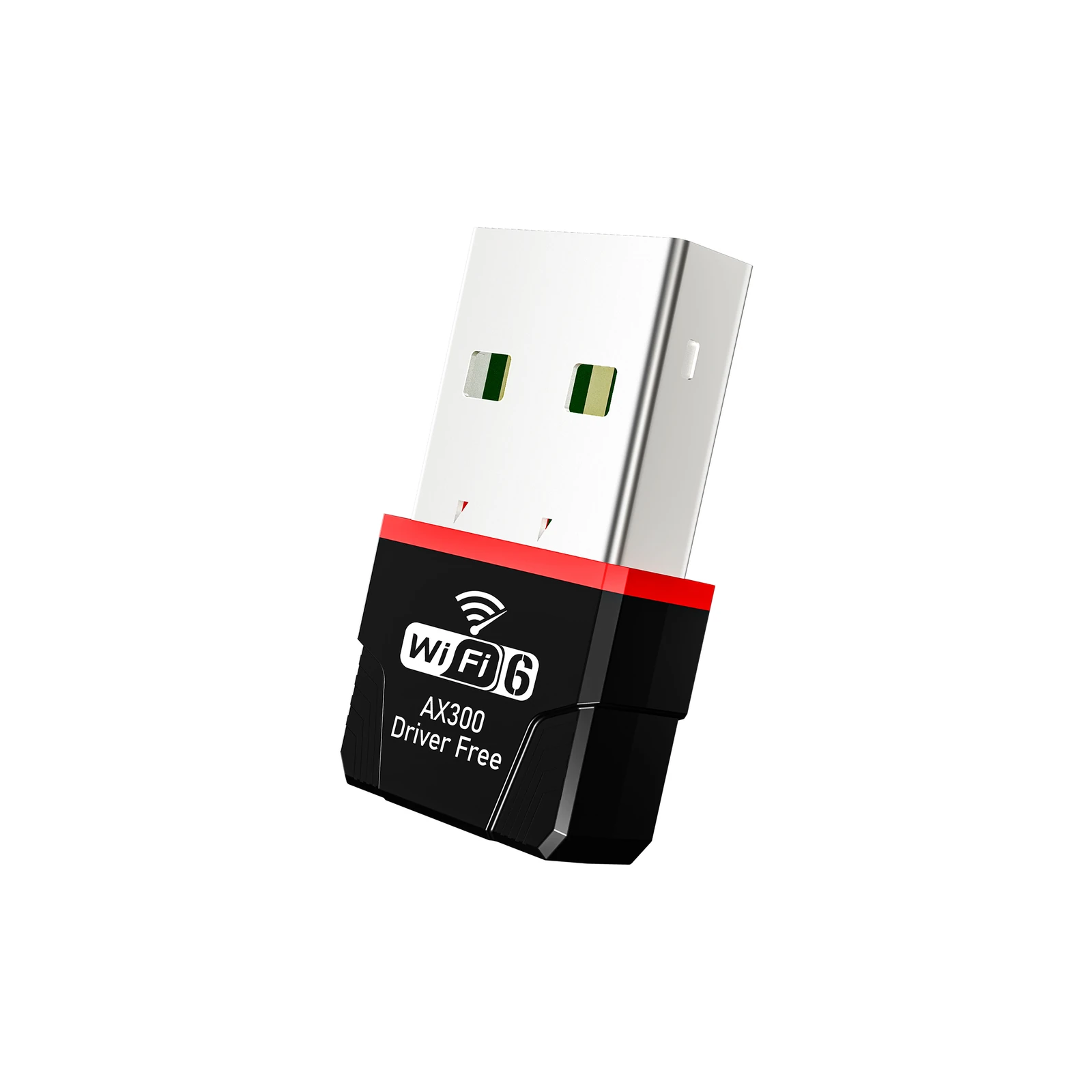
The catalogue attributes below help form a shortlist. They do not indicate support for Screenly, BrightSign, ViewSonic or any other named platform.
MAKE THE ENQUIRY USEFUL
Give the project a clear starting point.
You can enquire without choosing a model. Describe the host and intended assembly, then use the documented options to narrow the discussion.
Player/PC model, CPU, OS version or firmware image, and driver-installation permissions.
Port position, available clearance, enclosure material and service access.
Required Wi-Fi bands and access-point/security requirements supplied by the network owner.
Target quantity, the intended system image and acceptance conditions after restart or image restore.
BUYER QUESTIONS
Resolve the decision before the order.
Specific host support, delivery contents and acceptance requirements belong to the actual configuration.
Can I plug a USB Wi-Fi adapter directly into a commercial display?
Does an AX label tell me which band the adapter uses?
Is an internal board always the better option behind a screen?
Technical background and source scope
Screenly player documentation — Player models have different accessory requirements; this is not an LGX approval.
ViewSonic display support — Displays may use a specified accessory list.
LGX product attributes come from the project’s existing model records and factory reply. No named host validation is claimed here.
YOUR NEXT STEP
Discuss the configuration you need.
Share the host, quantity and installation requirements. A quote should identify the model or board revision, requested delivery set and software scope.